Download Android Apps (.APK Files) from Google Play on PC

Updated!! Please read the Major Update content below.

Update 2: If the method in this post don’t work, try the other way found here

Android Market (Now, Google Play) has plenty of Applications both Paid and Free which add Fun and Simplicity to your Android experience. However, downloading Applications on Phone can be a real trouble, specially if you have a slow data connection.

There is no way provided by Google to download applications on the Computer. But, a simple trick can do the Job. You’ll be able to download Apps. from Google Play directly to your computer and then transfer to your phone. Just follow the following steps to do the job:

You need Chrome browser to do the trick. If you don’t already have it, download and install it from here.

  1. Open Chrome browser and install the APK Downloader Extension (Latest stable version is 1.2.1 which supports the new Google Play).
  2. Right click on the Google Chrome icon on your desktop and Choose Properties.
  3. Choose Shortcuts tab and add  --ignore-certificate-errors --allow-running-insecure-content at the end  of Target box and click OK/Apply. Note that you need to leave a space after chrome.exe (See Fig. Below)
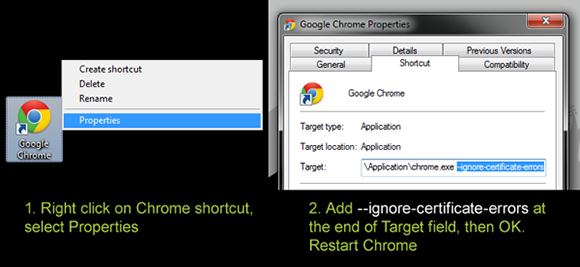
    Chrome ignore certificate errors
  4. Close Chrome and Restart using the shortcut at the desktop.
  5. Open the Extension’s options page and fill up all the details. You will need the Device ID app. to find your Android device ID.
  6. Now, go to Google Play and further to the Application page of the App. you want to Download.
  7. Click the APK icon in your Address Bar to start downloading the application to your PC (See Fig. Below).

    Android APK download PC

Please note that you can only download Free Apps using the Extension. It won’t show the download link for Paid Apps. You can find more info on how to use the Extension at the APK Downloader Extension’s Official Post.

Update: The latest version of Chrome is not allowing users to install 3rd party extensions. If you are receiving “Extensions, apps and user scripts can only be added from the Chrome Web Store” or a similar message while installing the extension to chrome, just download it using  a different browser and drag it to Chrome’s extensions page (chrome://chrome/extensions/) and it will install normally.

Major Update: Google Chrome doesn’t work anymore

With the recent updates to Google Chrome, the extension does not seem to be working anymore. As majority of the users reported, APK Downloader is giving out ‘Can not download this App’ error for any app they try to download. The reason for this is the implementation of some new features in Chrome in the recent releases. So the extension will continue to work if you have an older release of Chrome (<20) installed on your PC, but if it has been updated to the latest, downloading will not work. You can either choose to download an older version of Google Chrome (<20) and follow the steps above. Or you can follow the steps below which make use of Portable Iron Browser.

Doesn’t sounds to be a good idea to keep an older browser being used as your primary browser? Here Iron Browser comes to the rescue. All you need to do is download the older version of Iron Portable (provided below) and run it whenever you need to download any apps. We won’t recommend you to use this older version of Iron as your primary browser as it might have security loopholes.

Just follow these steps to download apps from Google Play using Iron Browser:

  1. Download the portable version of Iron Browser (v. 19.0.1100) – 32MB. Link here
  2. Use 7zip or any other extracting utility to extract the files to a separate folder.
  3. Once you have the files extracted, run IronPortable.exe
  4. In Iron, click on the Wrench icon in the top right (next to address bar) and select Tools> Extensions.
  5. You’ll be on the extensions page of Iron. Now open a new tab and open this article (shortlink – http://www.techmesto.com/?p=2043)
  6. Drag and drop the link to APK Downloader into the extensions tab of Iron Browser (which you opened in step 4)
  7. It will show you a warning, just click on Continue.
  8. Click on add to install the extension.
  9. Once installed,you will be presented with the Extension’s options page. Make sure that you fill out the correct Google Account information associated with your android phone. Login when done.
  10. Now you can download apps from the Play Store. Just open the page of the specific app and click on the APK Downloader icon in your address bar to download. Please note that only free apps can be downloaded and that too only the ones which are listed as compatible with your phone.
  11. Watch the following video guide if you are unable to understand or if its just too confusing.

Video Guide to download using Iron Browser:

Please submit a comment below if you are experiencing any issues.

, , ,

406 Responses to Download Android Apps (.APK Files) from Google Play on PC

  1. young February 25, 2013 at 11:36 pm #

    hello Boss,

    pls could i get the call control .apk file or mr number .apk…. please sir… thanks alot

    • singhnsk February 26, 2013 at 9:44 am #

      Hello Mate
      Here are the APK’s:
      Mr. Number | Call Control

      • Lucky4Leaf April 6, 2013 at 7:19 am #

        Please could I get ‘Mystique Ch1: Foetus’ .apk file.

        I’ve tried everything to get it (I have no WiFi currently). So if you could – please; thanks a lot :P

        • singhnsk April 6, 2013 at 11:20 am #

          Hello Nikolas
          Here is the APK that you needed. But still it will be great if you can provide me with the details about why the method didn’t worked for you.
          Mystique Ch1: Foetus

          • Lucky4Leaf April 6, 2013 at 1:18 pm #

            Thanks so much for the .apk!

            No, it was my fault – your method worked.

            I was having trouble with the Device ID thing… I used the app on my tablet and when I recorded that on notepad, I got 15 characters instead of 16 and when I tried to enter on Iron Browser, I kept getting an error. So I copied it wrong and when I copied and pasted that 15 characters line and redid the steps – I couldn’t work out what I was doing wrong!

            So I went back and saw I left out the last character. It’s pretty obvious now but I was rushing and really was keen on downloading apps esp. with no Wifi :<)

            In short: I stuffed up with the Device ID (recording of the 16 characters, left out last character) and that's why I couldn't log in on the Iron Browser page. Anyway, I'm going to share this to my friends. Would be really good, as they are in the same boat as me.

            Many thanks, for posting the .apk, regardless. Saved me 2.49 mb – ahahaa :)

          • singhnsk April 6, 2013 at 2:34 pm #

            Ahm.. Mistakes happen :p Great that you were able to figure it out yourself.

            If in case this iron browser stops working for you in future, there’s one more way as well.. Check out – http://www.techmesto.com/download-android-apps-to-pc-using-apk-leecher/

            Thanks for finding the time to reply back. Feel free to reply back in case you need any more help :)

  2. C March 3, 2013 at 8:18 am #

    Tried installing. Then read it doesn’t work on Chrome anymore, so installed Iron. Followed instructions exactly as you have up here. Went to the google play page and tried downloading a couple apps. Got this every single time

    Downloading…

    APK Downloader – redphx
    Can’t download incompatible apps? Try Market Helper
    NOTE: if you’re using stock Android device that doesn’t have Google Play installed ( likes Kindle Fire, Nook Color… ), please read this article. Thanks
    Support me by using my apps :D

    Needless to say – nothing downloaded anywhere.

    • singhnsk March 3, 2013 at 3:41 pm #

      Ah!! Don’t know why! Did you get any popup showing an error say – “Cannot download this app” or something similar?
      That page should actually reload and either download the app or else show an error. Can you try this again by trying a different app?

      • C March 3, 2013 at 6:03 pm #

        No got no popup or anything like that. And as it didn’t work, I deleted Iron browser.
        “Can you try this again by trying a different app?” I tried downloading like 5 different apps from Google Play and got the same thing every time.

        • singhnsk March 3, 2013 at 6:19 pm #

          Ah!! Don’t know why :|
          It works perfectly fine for me :roll:

    • JW April 14, 2013 at 11:50 am #

      If you have a Kindle Fire/HD, you could also Market Helper to spoof your ID. But I can’t figure out how to actually get the fake Android Device ID spelt out to me to enter it into the settings for the APK Downloader..

      • singhnsk April 15, 2013 at 8:32 pm #

        Okay.. Well I haven’t tried this for myself, still trying to figure it out.
        As the author states, “It Supports: Android 2.2+ devices with Android Market / Google Play Store + Google Services Framework installed“. So, have you installed all of these?
        After that all you need to do is spoof your device, select a different Carrier & Device, and then just find out your device ID using the Device ID app found on Play Store. Use it in APK Downloader then :)

  3. yoBro March 4, 2013 at 9:03 am #

    I did everything as told and it was going smoothly until I found out that the file I downloaded was no where near as big as the size it should be. It’s like the file was supposed to be 300 mb or something but when I downloaded it using apk downloader the file’s only 14mb. So I’m quite sure that the file should be 300mb also when I’ve downloaded it. I hope you can help me. :)

    • singhnsk March 4, 2013 at 9:52 am #

      The most I’ve tried is a 50MB app and it was downloaded with the correct size.
      Are you on a slow connection? In case you are, that’d have broken the download.
      Otherwise, it’d be great if you can provide the Google Play link of the app so that i can try downloading at my end :)

  4. yoBro March 5, 2013 at 4:08 pm #

    Actually, I got it all figured out. Thanks a lot btw. :)

    • singhnsk March 5, 2013 at 5:00 pm #

      Hmm.. Thanks for letting me know that you’ve figured it out.
      Hope I’ll see you again :)

  5. Gogo March 11, 2013 at 10:04 pm #

    Hi

    Thank you for your tutorial, but it’s not working for me.
    I’ve done everything right, but there is no icon in address bar.

    Then I tried to install application over my mobile Galaxy S II, but I cant find it on Google play!?

    Why is that?! Do you know maybe?

    Application that I need is:

    https://play.google.com/store/apps/details?id=org.jfedor.nxtremotecontrol&feature=search_result#?t=W251bGwsMSwxLDEsIm9yZy5qZmVkb3Iubnh0cmVtb3RlY29udHJvbCJd

    Can you help me some how please?

    • singhnsk March 12, 2013 at 9:36 pm #

      Don’t know why the icon didn’t appear. Are you sure that you were on an exact page of an application/game and you filled out your account details in the APK Downloader’s options. You also need to wait for the page to completely load before an icon appears?
      Nevermind here is your application. I’ve downloaded it for you. Click on the link below to download:
      NXT Remote Control APK

      • Primoz March 20, 2013 at 8:46 am #

        I have same problem… no icon any mor. It was there for couple of minits, but then after restart iron browser it just dissapeard. What can I do?

        tnx

        • singhnsk March 20, 2013 at 9:05 am #

          Don’t know much as I haven’t experienced that. Make sure that the extension is enabled and running.
          If it doesn’t work, just remove and reinstall the extension. I’m sure you’ll get your icon back.

  6. Gogo March 12, 2013 at 6:33 pm #

    Why did you delete my comment?!?

    • singhnsk March 12, 2013 at 6:54 pm #

      Well. I never delete comments. It just needed to be approved. Its approved now :)

  7. Gogo March 13, 2013 at 12:15 am #

    THANK YOU VERY MUCH!!!

    About deleting my comment – my bad, sorry.

    Yes, I’ve done everything you said and it won’t work.
    There is just no icon.

    Do you know any other way to donwload?

    Thank you once again :-)

  8. Shivam March 13, 2013 at 1:04 pm #

    Mt frnd I think u should create a blog or website on which all google play apps would be available. U will b famous & we also will be benefited.

    • singhnsk March 13, 2013 at 5:23 pm #

      Well.. But that’ll firstly be illegal, next it will take a lot of time combined with daily downloading + uploading.
      It certainly isn’t the job of only one person. Keeping everything up and running requires a team.

  9. deamonpog March 14, 2013 at 12:51 pm #

    Awesome. Thank you very much.
    First time i installed the extension i couldn’t login to extension at firsty try ( due to two step verification )
    Then i created an application specific password and it worked. but the extension did’nt work though i was logged into it properly.
    So i uninstalled the extension ( using the Trash icon in the extensions view of the Iron browser )
    Installed the extension again and got the extension logged in at the first attempt. Which worked awesomely.

    Cheers.

    • singhnsk March 14, 2013 at 2:04 pm #

      Great!! Good to know that..
      It just sometimes happen with the application. If it stops in the future, you can again logout and re-login and it will start working again :)
      Thanks for giving it a second attempt.

  10. pekul7 March 21, 2013 at 11:29 pm #

    Hi there,

    I followed your instructions however it didn’t work for me. The APK icon doesn’t even appear in the address bar when I visit a google play store with any free app (ex. skype, facebook. etc.).

    I’m trying to download: https://play.google.com/store/apps/details?id=com.fidelity.android&hl=en
    Could you help me out?

    Either way, thanks for the site and info.

    • singhnsk March 22, 2013 at 9:07 am #

      I have no idea why the icon didn’t appear for some of you. Have you tried by Removing and Re-installing the extension to iron? Are you filling your correct Google Account details in the options page?
      I’ll look for an alternate way for those of you who aren’t able to download using this method. Anyways, here’s the Fidelity Investments app that you were looking for:
      Fidelity Investments APK

      Thanks for taking the time to write this comment.

  11. cedre March 26, 2013 at 1:50 am #

    I can not download https://play.google.com/store/apps/details?id=com.elgato.eyetv.micro.idtv&hl=pl
    can someone please do share ??

  12. deamonpog March 26, 2013 at 3:23 pm #

    No Icon Again. :(
    I tried this again after some days. Now its not working. Guess i have to uninstall it and install the extension again each time i use it :(
    Can you fix it.
    The Icon of the extenstion has changed in the extension manager, to Google Play icon.

  13. Aditya March 28, 2013 at 3:59 pm #

    Hey, I get this error when the download page opens,

    Error:
    - Please disable SSL error warnings
    -Check your account information( email and device Id).
    I’ve checked my id and email, that seems to be correct.

    Can you please download this app for me?

    https://play.google.com/store/apps/details?id=com.glu.gladiator&feature=search_result#?t=W251bGwsMSwxLDEsImNvbS5nbHUuZ2xhZGlhdG9yIl0.

  14. Zenoxen March 28, 2013 at 9:20 pm #

    I atempted again to download the latest version of the Cyman Mk II app (https://play.google.com/store/apps/details?id=com.cyman.android) again, but now SR Iron refuses to install any extension comming from this website At ALL. Real APK Leecher doesen’t works with my device either.

    • singhnsk March 28, 2013 at 11:44 pm #

      Just tried removing and re-adding extension to the SRWare Iron and it worked. As you earlier mentioned that you use Iron as a standalone browser on your PC, so most probably it is upgraded to latest version as well and as Iron follows the code used by Google Chrome, it won’t install any extensions from Unknown Sites.
      Also tried to download the app using Real APK Leecher and it works perfectly fine too. Don’t know why it doesn’t work for you. Anyways, I’ve again downloaded the latest version of the app (using APK Leecher) for you. You can download it by clicking on the Link Below. I’m also planning to add a forum to this blog and open a App Request area where users can request any free apps and that will be downloaded for them :)
      Download Cyman Mark 2 APK

      • Zenoxen March 29, 2013 at 5:37 am #

        Well…I downloaded the new portable Iron and tryed it with that.

        And that sounds like a good idea, since this is kinda turning into that. Please warn me when you do it (or update this threat with the link please ^^)

        Anyways, thank you so much. I would never manage it withought you.

      • rusty April 21, 2013 at 12:22 am #

        cool! :) ) Can I request for 4 pics 1 word for Samsung Galaxy Y? Thanks a lot.

        • singhnsk April 22, 2013 at 7:34 pm #

          Why not download it yourself? xD

  15. Ye tun April 9, 2013 at 10:05 am #

    i could installed apps from play store .but now i cant see where they are ..
    plz tell me ..

    • singhnsk April 9, 2013 at 10:22 am #

      What do you mean? Don’t they appear in the App Drawer (menu)? Or else in the memory card?
      Are you sure you installed them and not just transferred them to phone and left?

    • Ye tun April 9, 2013 at 11:00 am #

      sorry for my English …

  16. Ye tun April 9, 2013 at 10:57 am #

    i have done as u said .
    when i press the install , it showed Installed in my android . i’m doing on my PC.
    but i cant see where the apps are .

    • singhnsk April 9, 2013 at 11:07 am #

      So, you’re just pressing the Install Button on the Google Play website? Well that’s not the way to go. You need to click on the APK Downloader’s icon located in the right of the Address bar and then transfer this downloaded APK file to your phone to install it.
      Clicking the Install button directly on Google Play will only push a notification towards your phone and then the phone will start downloading this app whenever it will connect to the Internet. This is not something which we wanna do.

      Sorry if I’m understanding you incorrectly. You can watch the video in the article to find out how to do this.

  17. yetun April 9, 2013 at 5:08 pm #

    thanks for responding .
    u r very helpful to me .
    Actually , i dont have any phone .
    but i want to download the apps from play store into my pc .
    i didnt see apk icon on top in the right ..
    i have finished download apk downloader as u said .
    how can i get that apks from website into the PC ?
    plz help me …i really rely on u..

    • singhnsk April 9, 2013 at 9:46 pm #

      Hmm.. If you aren’t using an Android Phone, what’s your need to download those apps? :/
      For the downloading to work, you need an Android Device ID which can only be created if you already have an Android Phone with Google Play installed on it.
      I can help you by Downloading some of the apps that you need. Other than that, I have no idea how I can help you with anything else.

  18. yetun April 11, 2013 at 10:42 am #

    hehe…i thought like that ..
    but i wanna download apps from there ..
    what Email do u have to contact u ?
    Here is not good ..

  19. Deepak April 15, 2013 at 11:05 am #

    Hi,

    Can you please help to download dictionary (English to English) for Android by giving direct link to this page.

    Also request you to please send the link to my mail also.

    Thanks & Regards
    Deepak

  20. Yoko April 22, 2013 at 8:42 am #

    It really works and amazing, but some games such as Dungeon Hunter can’t be downloaded and some other games (Heros of Destiny) only downloaded as 2MB Instead of 200MB, please advise. Thanks.

  21. Shabaz April 28, 2013 at 12:08 pm #

    I’m not able to add the extension… Chrome says extensions cannot be added from this website… help me… :’(

    • singhnsk April 28, 2013 at 3:44 pm #

      You need to drag and drop it on the extensions page to install it. It even doesn’t work on chrome. Either use Iron Browser or use the other way by using APK Leecher

  22. karl May 2, 2013 at 6:49 pm #

    the apk downloader at the taskbar don’t exst in mine but i followed all the steps please help please

  23. don May 4, 2013 at 9:05 am #

    Hello, I have a problem.

    1st, I download a APK downloader. When I download Go Note. It suddenly pops out and says Error:
    - Please disable SSL error warnings
    -Check your account information( email and device Id).
    I’ve checked my id and email, that seems to be correct.

    2nd, I have a problem with Real APK Leechers. When I download an App. It says Download failed due to: Bad Device ID, Internet Connection and You did not purchase this app.. My Connection is fine :( (

    Is there any solution for this?

    • singhnsk May 4, 2013 at 4:58 pm #

      Are you downloading a free app using the correct device ID? Should be 16 characters long :) Reenter it. Sometimes you just miss out a character.

      • don May 6, 2013 at 7:02 am #

        Finally Works. Big Help. Thanks :D

  24. Arun Verma May 10, 2013 at 1:47 pm #

    I downloaded iron but, and did everything… but when i open the app page in google play, no any extension shows up in the address bar for downloading…. not downloaded anything till now.. plz help.

  25. Philippines May 15, 2013 at 9:50 pm #

    Works Like a Charm . Thankyou very much! ;)

  26. JJ June 3, 2013 at 7:45 am #

    Hello admin,

    Could you help me download this free app,

    https://play.google.com/store/apps/details?id=com.fungames.carracefree

  27. Amrit June 3, 2013 at 10:03 am #

    I want to know the device id of my galaxy note korean.How to know the device id of it?
    please help me

    • singhnsk June 3, 2013 at 11:04 am #

      Use the device id app found in the play store :)

  28. Ayush June 3, 2013 at 1:42 pm #

    hey it gives a error………
    -Please disable SSL error warnings
    -Check your account information(email and device ID)

    • singhnsk June 3, 2013 at 1:47 pm #

      Check your account in that case. Many happened to make an error while entering the 16-digit device ID.

    • Ayush June 3, 2013 at 2:20 pm #

      srry now its working thanx amazing work

      • singhnsk June 3, 2013 at 2:22 pm #

        Thanks for taking the time to reply back. Enjoy!!
        If ever it stops working, disconnecting and re-login will work, else remove and re-install the Apk Downloader :D

        • Ayush June 3, 2013 at 10:22 pm #

          ya thanx……………

Trackbacks/Pingbacks

  1. How to Download Android Apps Directly to PC using Real APK Leecher - March 28, 2013

    [...] post is for those who are facing problem downloading Apps from Google Play using the older Google Chrome workaround. Folks at codeimba have created this amazing small tool called Real APK Leecher which allows you to [...]

Leave a Reply