

Are you looking for the checkboxes to select multiple emails in Outlook.com? The checkboxes help with bulk operations, such as deleting multiple emails at once or moving them to a different folder. Whether Microsoft changed the view through a server-side switch or you mistakenly changed the settings, the fix is rather simple. Here’s how:
How to bring back the checkboxes in the email list in Outlook.com?
- Open Outlook.com.
- On the email list, click on View on the top menu.
- Now click on View settings.
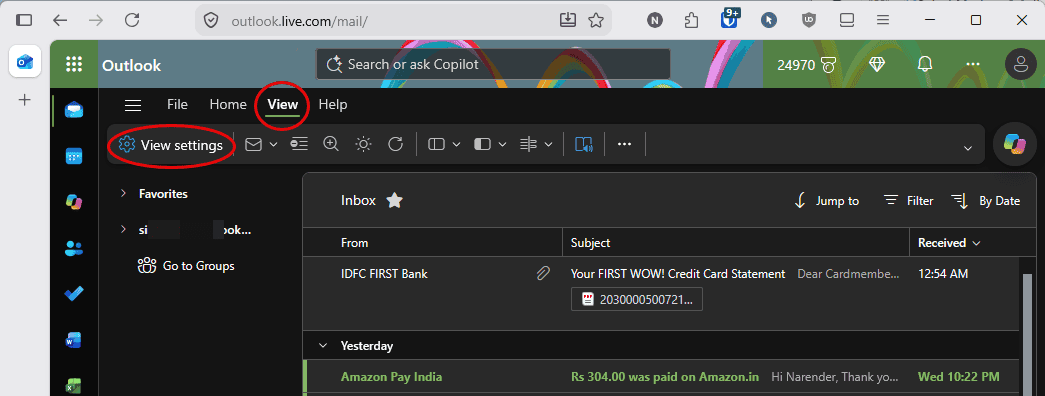
You can also get here by directly opening Settings > Mail> Message list. - Under the Layout heading, modify the “How do you want messages to appear in the message list?” setting.
It’s likely set to Name only or Sender images. Change it to “Checkboxes“.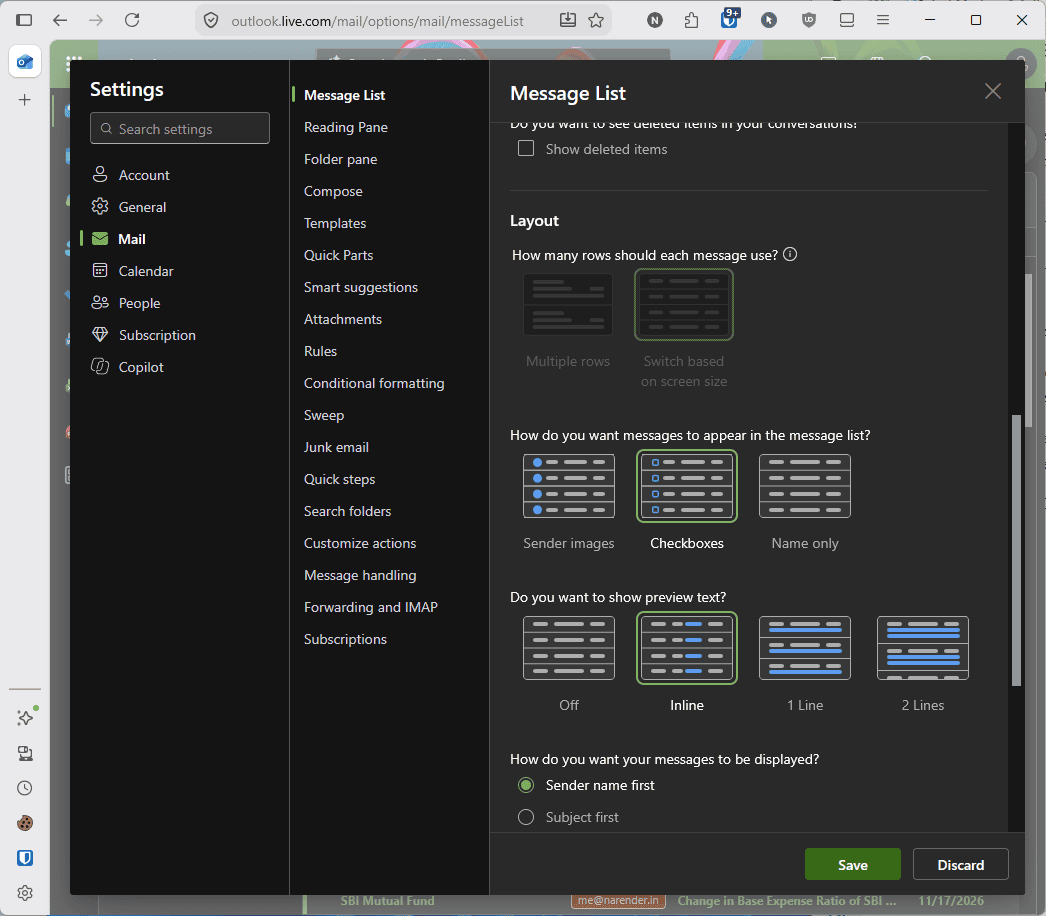
- Click on Save.


That’s it. Close the settings and return to the message list. There you will have the familiar checkboxes placed before each email for selecting multiple emails together.

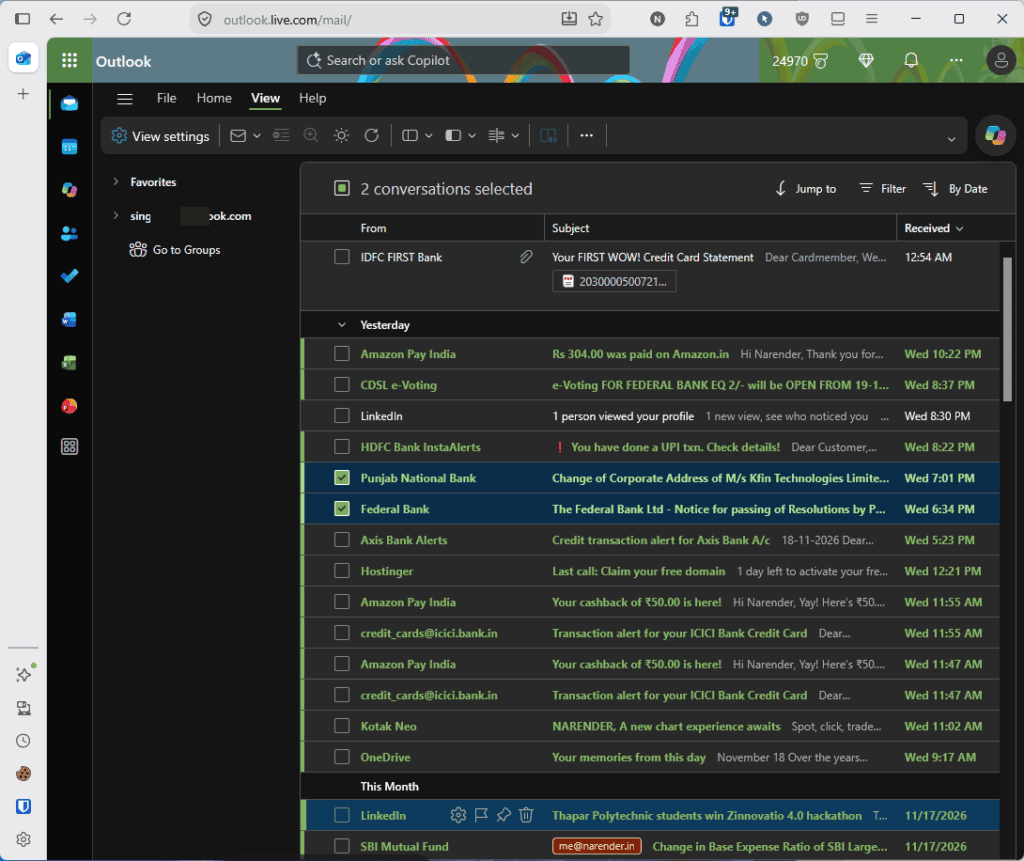
The fix also applies to the Outlook desktop app for Windows, which is essentially a Microsoft Edge Browser wrapper for Outlook.com.
Although it is still possible to select multiple emails without checkboxes, such as by using keyboard shortcuts (Ctrl or Shift + Click or arrow keys), having the checkboxes keeps things easy, especially if you also want to fine-tune the selection later on.